Documents saga a2ui 0.11.0-rc.1 (prerelease). This is the SDK guideBuild a React game that you play inside Claude or ChatGPT. You click a square to place X; the assistant plays O. A local server checks every move and keeps the board up to date. You’ll create an app in your own directory, install SAGA from npm, and open its first card in the host you choose. Then you’ll add the game and a list of moves. Vite generates the project configuration. Each lesson explains an application change, shows what to look for in the host, and provides complete files for comparison.docs/build-tic-tac-toe-with-react.mdat source revisionfb4126c. It is published as a snapshot: later source changes do not alter it. Licensed under Apache-2.0.
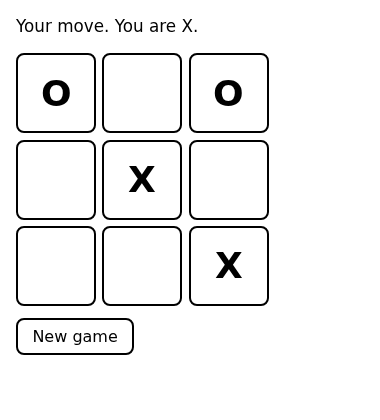 A finished version of this game runs at
 https://examples.saga-ai.dev/tic-tac-toe/mcp, with no sign-in. To try it before you build, follow the setup steps for Claude and ChatGPT; its source adds only hosting and storage to this example. This guide is how you build it yourself, with npm and Vite, and does not depend on the hosted game.
Before you start
Install Node.js 22.23.3 or newer andcloudflared. You also need a text editor, a terminal, and access to custom MCP connections in Claude or ChatGPT on the web. Check that your account offers Add custom connector in Claude or Add custom MCP server in ChatGPT before creating the app. A managed workspace may require an administrator to enable this.
You only install Node.js and
cloudflared separately. The app’s package.json installs the JavaScript libraries and build tools. Familiarity with JavaScript and basic React is enough to start; the links explain unfamiliar terms.
Check the tools in your terminal:
1. Create the app
Follow Connect a React component to a server result. You will generate a React/TypeScript project with Vite, add an operation that returns a message, and display that result in a React component. The lesson includes the installation and build commands; run them in your own app directory. The walkthrough pins@saga-a2ui/react-mcp-stack to 0.11.0-rc.1 and uses exact versions of its dependencies. Use those versions; the npm next tag can move. The stack includes the local HTTP/MCP listener, so your app only defines its operations, components and state.
The npm override for @a2ui/markdown-it selects the dependency version used to qualify this package combination. It does not remove the inherited advisories below.
With these versions, npm reports advisories inherited through A2UI’s Zod 3 and DOMPurify dependencies. The game’s tool schemas use Zod 4.6.7; its own React catalog does not bundle DOMPurify or render HTML from the model. The installed dependencies still carry those advisories. See the Zod advisory and DOMPurify advisory. Do not force Zod 4 into A2UI’s Zod 3 dependency: their APIs differ.
Keep the generated package-lock.json in your project. Use npm ci for later installs from that lockfile.
The server prints:
2. Open the card in Claude or ChatGPT
The host connects from its own servers, so it cannot use your computer’s127.0.0.1 address. Open a second terminal and start the tunnel:
trycloudflare.com from the output and append /mcp. For example, https://your-assigned-name.trycloudflare.com/mcp. Use the address printed in your terminal, not this example.
--http-host-header localhost gives the local server the Host header it accepts. Keep this terminal running too. Quick Tunnel chooses a new address when you restart it; restarting only the game server keeps the tunnel address. Cloudflare provides Quick Tunnels for development and testing, without an uptime guarantee. See its current limits.
Claude
- Open Customize → Connectors → Add custom connector.
- Name it My tic-tac-toe, enter the tunnel’s
/mcpURL, and choose No sign-in when offered. - Connect it, then open a new chat and enable My tic-tac-toe from the connectors menu beside the composer.
- Send: Open My tic-tac-toe. Approve the tool call if Claude asks.
ChatGPT
- Open Plugins → + → Add custom MCP server.
- Name it My tic-tac-toe, enter the tunnel’s
/mcpURL, and choose No authentication. - Add and connect it. In a new chat, select My tic-tac-toe from the composer’s tools menu or by typing
@and choosing it. - Send: Open My tic-tac-toe. Approve the tool call if ChatGPT asks.
3. Build and play the game
Stop the game server with Ctrl-C in its terminal. Leave the tunnel running. Follow Build the playable game to add the rules, server operations, board and turn handoff. Each section traces a part of the game and includes the complete application files. Then run:
Update the connection so the host discovers the added tools and the rebuilt card:
- Claude: open Customize → Connectors → My tic-tac-toe, open its … menu, and choose Refresh tools list.
- ChatGPT: open Plugins → My tic-tac-toe → Manage, then choose Refresh tools.
Let’s play tic-tac-toe. I’ll play X by clicking the board; you play O.Click the centre square of the empty board. It shows X and disables the squares while O has the turn. In Claude, the board puts Your turn in the chat box. It has not been sent yet: click Send to let the assistant play; you do not need to write or edit the message. In ChatGPT, the board sends that message automatically. Accept any tool confirmation the host presents. The assistant plays O, the existing board shows the move, and the empty squares become available again. Keep playing until someone wins or the board is full. The status announces the result, and a winning line is highlighted. New game prepares a message asking the assistant to open a fresh card. Confirm it if asked, then play in the new card; the old card keeps its own game. Keyboard users can Tab to an available square and press Enter or Space.
How a turn reaches the board
Your click callsplay_move through the host. The server checks the player, square, and move number before applying it, then returns the updated game. The board shows X and adds Your turn. The game ID, board and move instructions travel separately in hidden model context; the assistant can use get_game if it needs to read the state again.
The assistant calls the same play_move tool. That call returns to the conversation, so the board checks get_game while it waits. It reads every 1.5 seconds for about a minute, then every 5 seconds until O plays or the game expires. Waiting for a host confirmation does not require a refresh. Closing the view ends its wait.
When the host reopens a card, the board reads its game before enabling any squares. If a move’s reply is lost, the board also reads the game to check whether that move landed. A confirmed move gets its turn message without playing the square again. An unconfirmed message is not resent automatically: the host may already have received it.
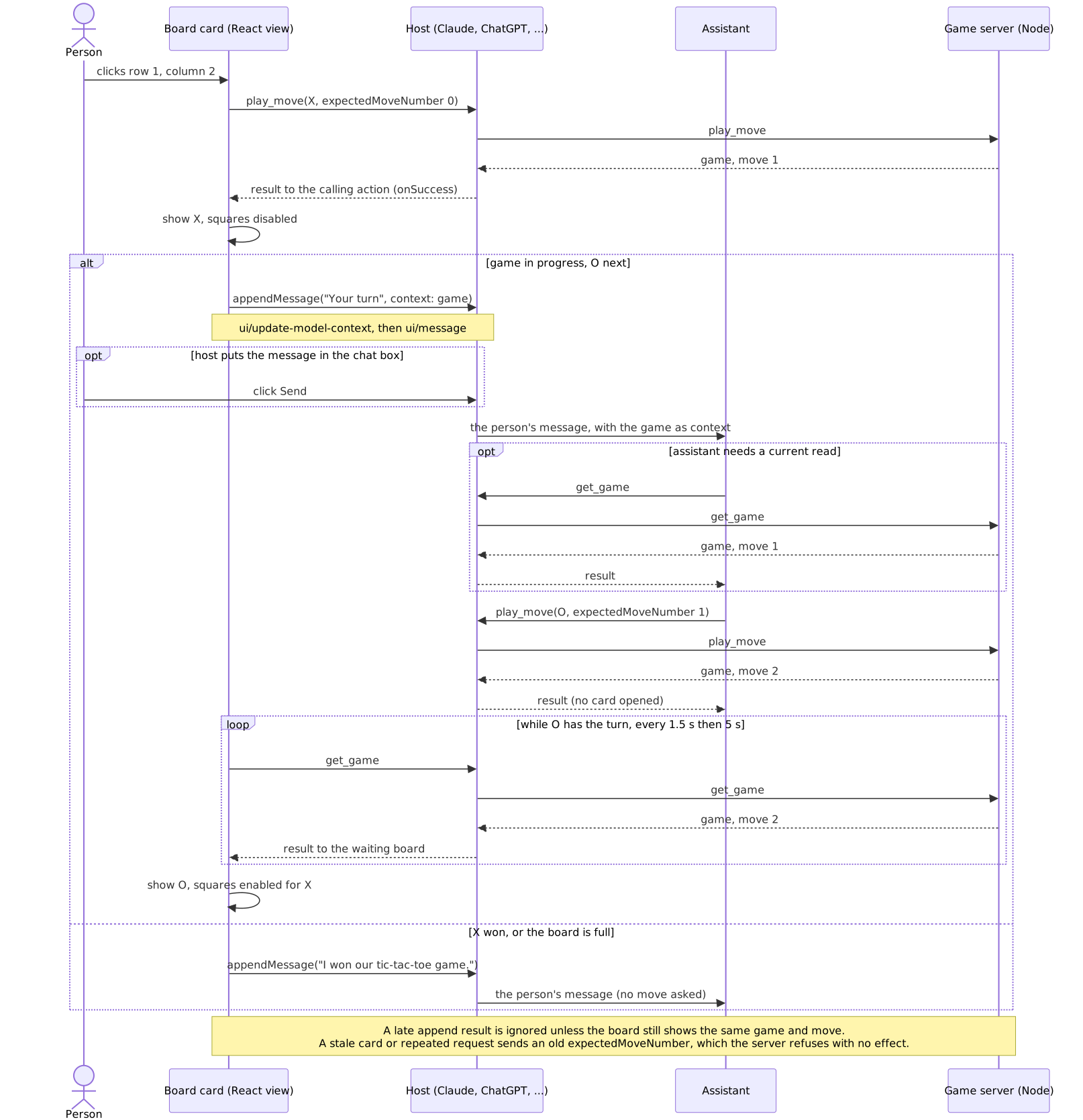 The app owns the game rules, storage, React components, and action definitions. SAGA validates the operation inputs and results, connects the view to the host, and supplies the action and conversation APIs.
 src/surface.ts describes the layout; src/catalog.tsx implements its components in React; src/actions.ts gives the buttons their behavior.
4. Add a move list
The game already returns its move history. Follow Add a move list to render it with a new React component and a layout binding. The lesson shows the small change first and includes both complete files for comparison. Stop the game server, rebuild, and start it again:src/index.css, or the status messages in src/text.ts. Rebuild and start a new game to see your changes.
When something goes wrong
The board should update after each confirmed turn. If it stalls, check for a pending host confirmation and make sure the server and tunnel are still running. You should not need to type another turn prompt or refresh the board.
When finished, press Ctrl-C in both terminals and remove the temporary connection from the host. Other ways to structure the game discusses a separate backend, other renderers, and proposed delivery options. To build a different React app, keep the connection and build files and replace the game’s rules, components, and actions.